

The Green Button in OS X window bars used to maximize windows to fit the Mac screen, but since OS X Yosemite the Green Button now sends windows or apps into full screen mode by default. This can be modified one-off by Option+Clicking the maximize button, but a better solution for some users is to permanently modify the behavior of the green maximize button to work like it used to instead.
To change the green button maximize behavior you will need to use BetterTouchTool, a free application for OS X that performs many other functions and neat tricks with the Mac trackpad and mouse, but for the purposes here we’re just using it to adjust window maximizing universally throughout OS X Yosemite.
Here’s how to get the old green button action back by default, this means you just have to click the green button in a window to maximize it rather than having to option+click or double-click the titlebars:
- Download BetterTouchTool free here
- Open BetterTouchTool and grant access to “Accessibility” when requested (this will open System Preferences)
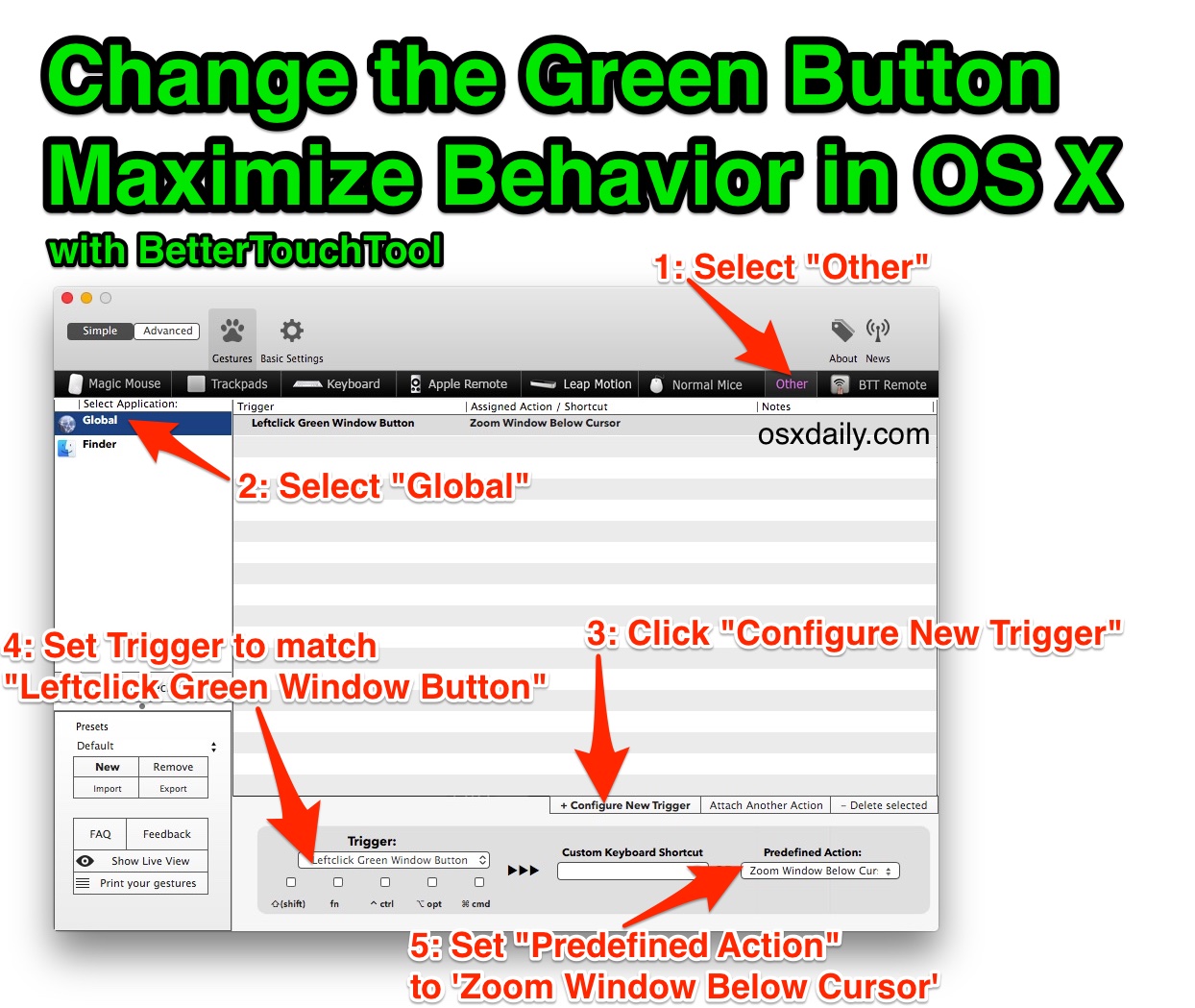
- Back in BetterTouchTool, click on the “Other” tab in the upper right of the app
- Select “Global” from the left side options
- Near the bottom, click on “Configure New Trigger”
- In the “Trigger” pulldown menu, choose “Leftclick Green Window Button”
- In the “Predefined Action” menu, choose “Zoom Window Below Cursor”
- Flip back to the OS X Finder (or another open app) and click the green button, it should now simply maximize the window rather than send it into Full Screen Mode
- Quit BetterTouchTool, the changes will stay in effect as long as you have BetterTouchTool configured this way, and as long as BetterTouchTool has access to control the computer through Security > Privacy > Accessibility

Here are the BetterTouchTool setup steps detailed in an image, click this to view larger:
This is a little confusing and BetterTouchTool has a sort of weird interface until you get used to it, so if the above walkthrough isn’t clear then watch the complete process in the brief video tutorial below:
I’ve dug around and scoured for defaults write commands to change the green button behavior back to the old default in prior versions of OS X, but have yet to find anything other than this aforementioned approach offered in StackExchange forums that uses BetterTouchTool. If you know of a solution that doesn’t involve using a third party app, do let us know in the comments.
Source Article from http://feedproxy.google.com/~r/osxdaily/~3/EftXWk4rCts/ http://revealedtech.com/wp-content/uploads/2015/03/bettertouchtool-prefs-for-green-button-maximize-os-x-610x427.jpg
Change the Green Button Maximize Behavior in OS X Yosemite with BetterTouchTool

No comments:
Post a Comment